What does the AI product photography workflow look like step by step?
The 5 steps below are the workflow teams run inside Avocado AI, from the first product photo to the exported variant set.
- 01
Upload one sharp product photo
Shoot the product front-on with even light and a readable label. Save it to Brand DNA so Avocado remembers the product.
- 02
Edit it into a new scene
Use GPT Image 2.5 edit or Nano Banana 2 Edit with a prompt or a studio preset. Add up to 14 reference images for angles and style.
- 03
Pick the best of up to 4 variations
Compare the variations, check the label text on each, and re-edit any image where small print or the logo has drifted.
- 04
Upscale the keepers
Upscale the final shots for product pages, marketplaces, print or large banners.
- 05
Repeat it for every SKU with Flows
Save the shot set as a Flow and run it with each product photo, so every SKU gets the same shots in the same style.
Which Avocado AI tools does AI product photography use?
6 tools cover the whole AI product photography workflow. They share one credit pool and one gallery, so nothing is exported between steps.
| Tool | Role in this workflow |
|---|---|
| Brand DNA | Products, references, visual direction, tone and rules every tool reads |
| Image workbench | Prompt or edit your own product photo, up to 4 variations per run, upscale |
| Flows | Chain steps on one canvas, run them in one click, cut a commercial in Director mode |
| Video workbench | Text to video, animate a still, start and end frames, reference and motion control |
| Super Agent | Plans, creates on brand and publishes or schedules after your approval (Growth and Pro) |
| Avocado MCP | The same tools from Claude, Codex, Cursor or your own agent |
What does work made in Avocado AI look like?
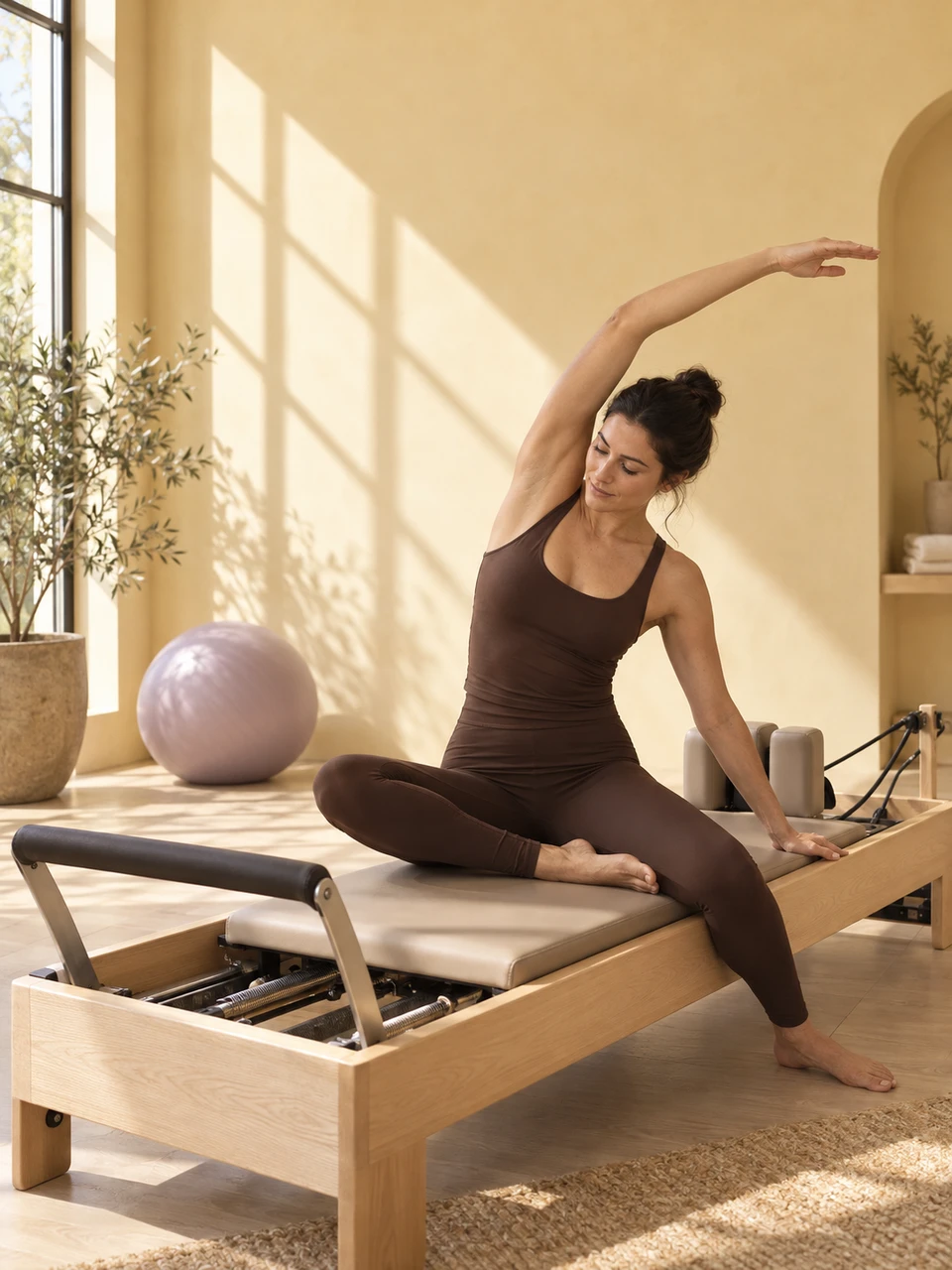
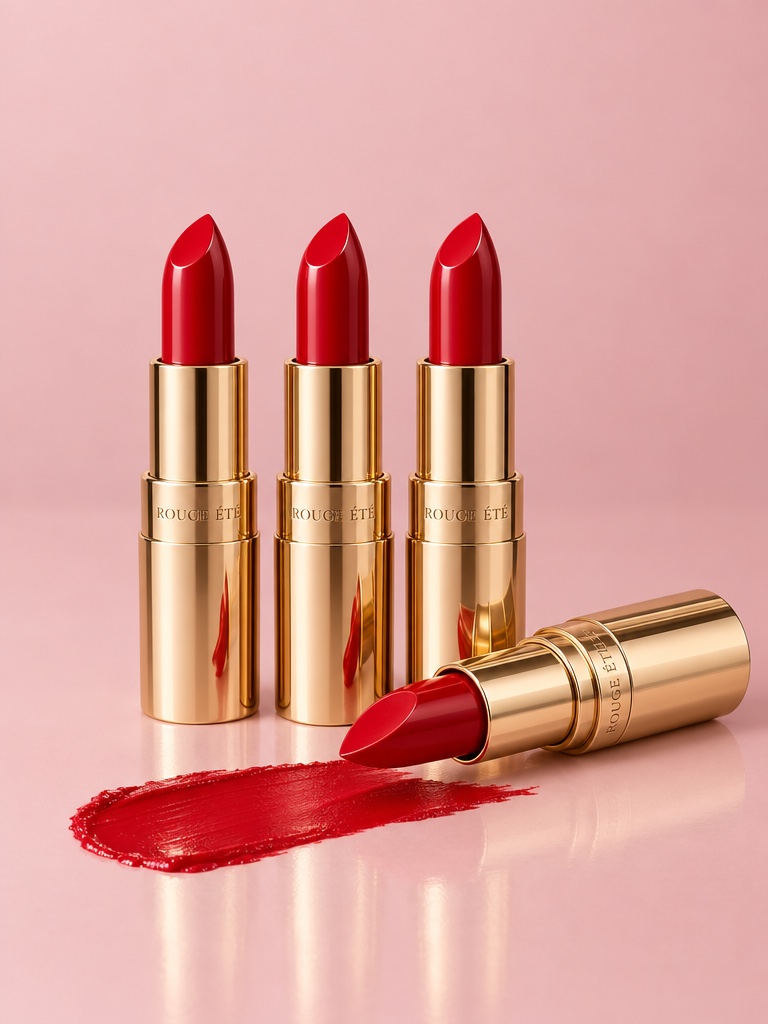
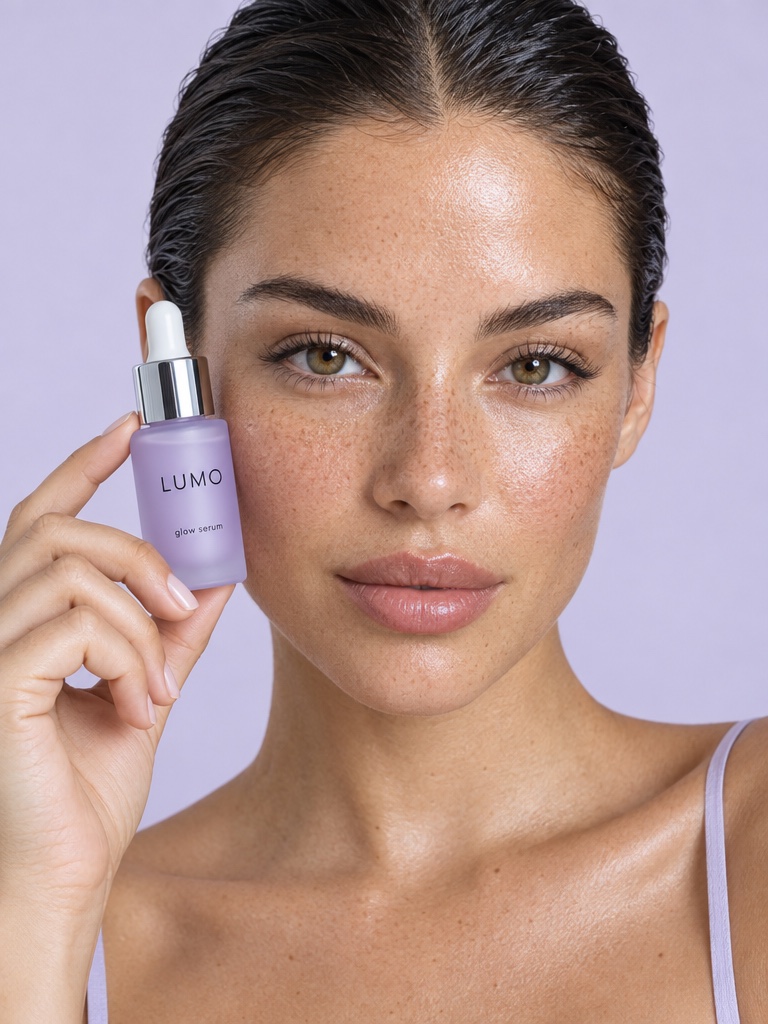
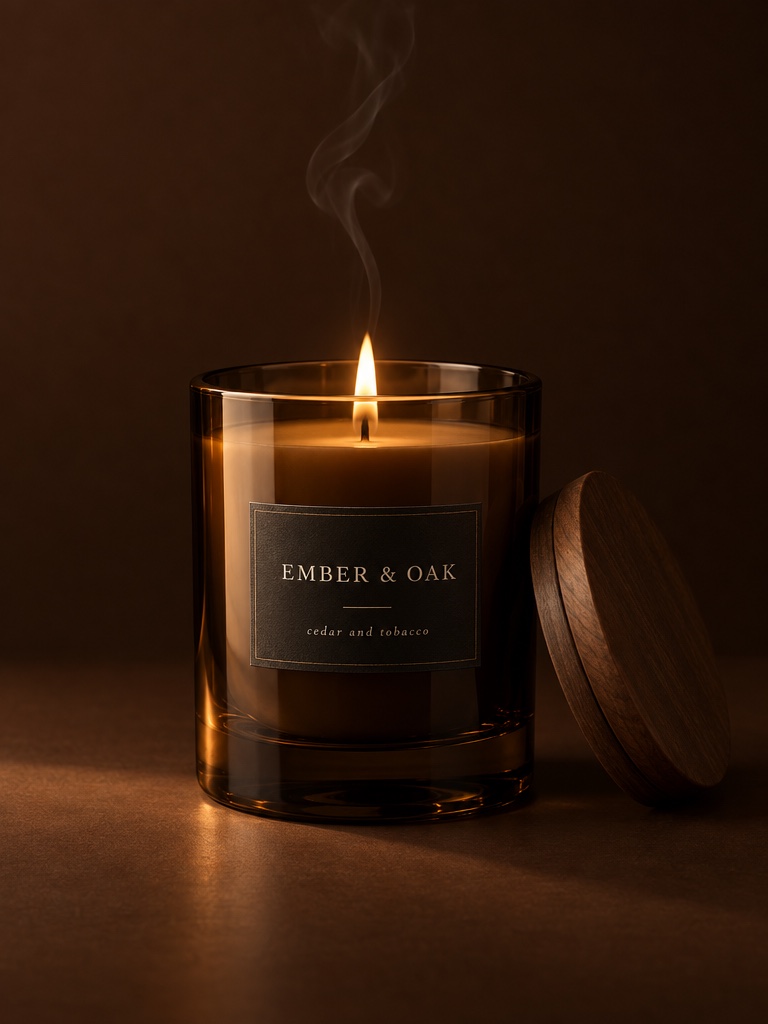
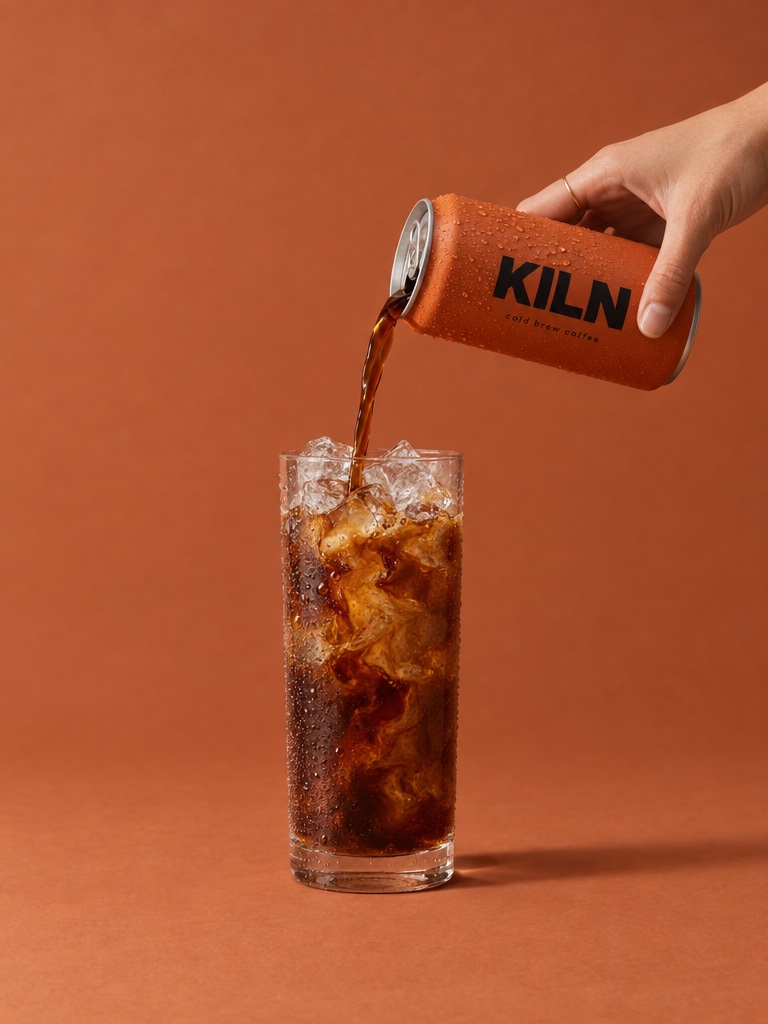
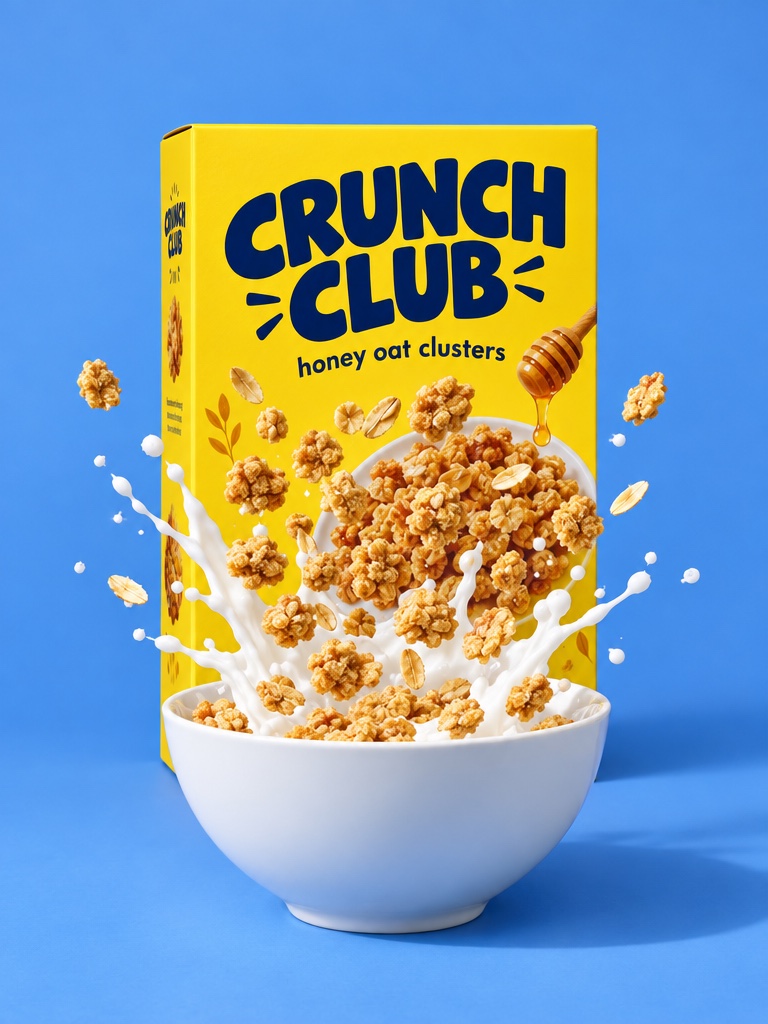
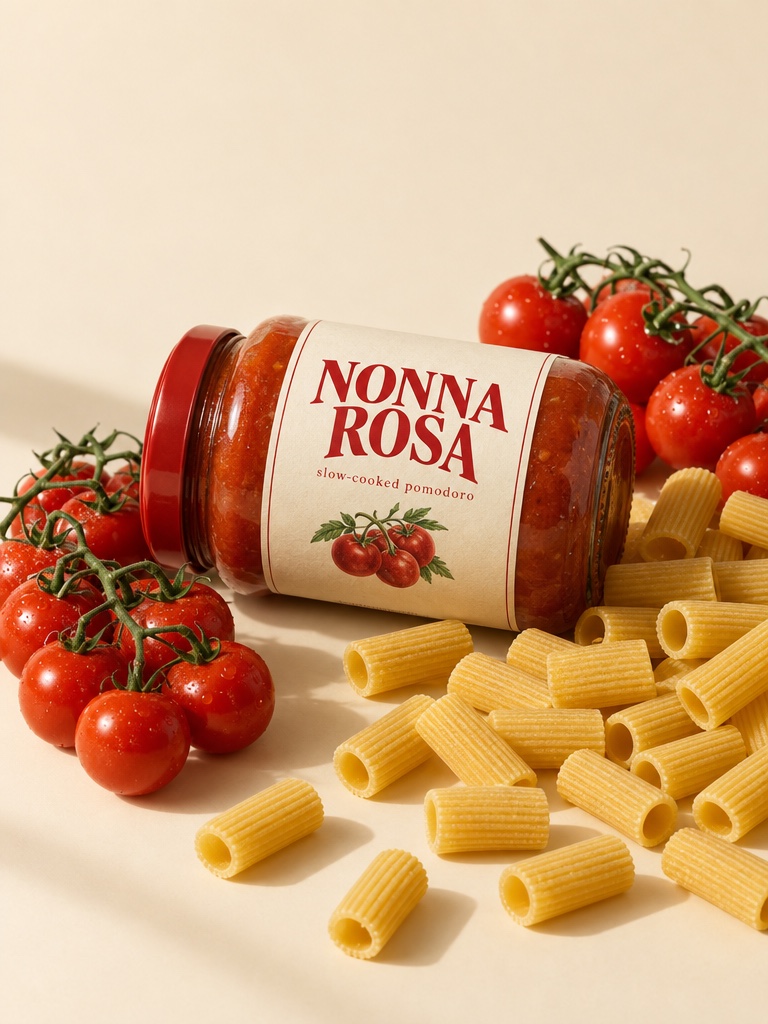
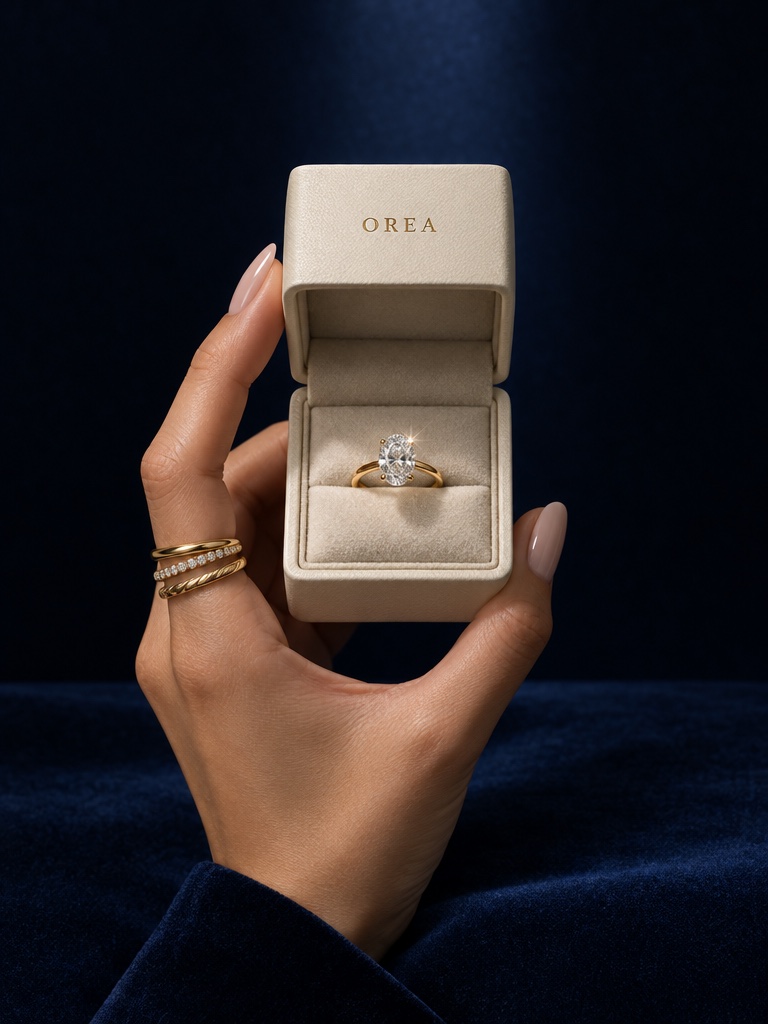
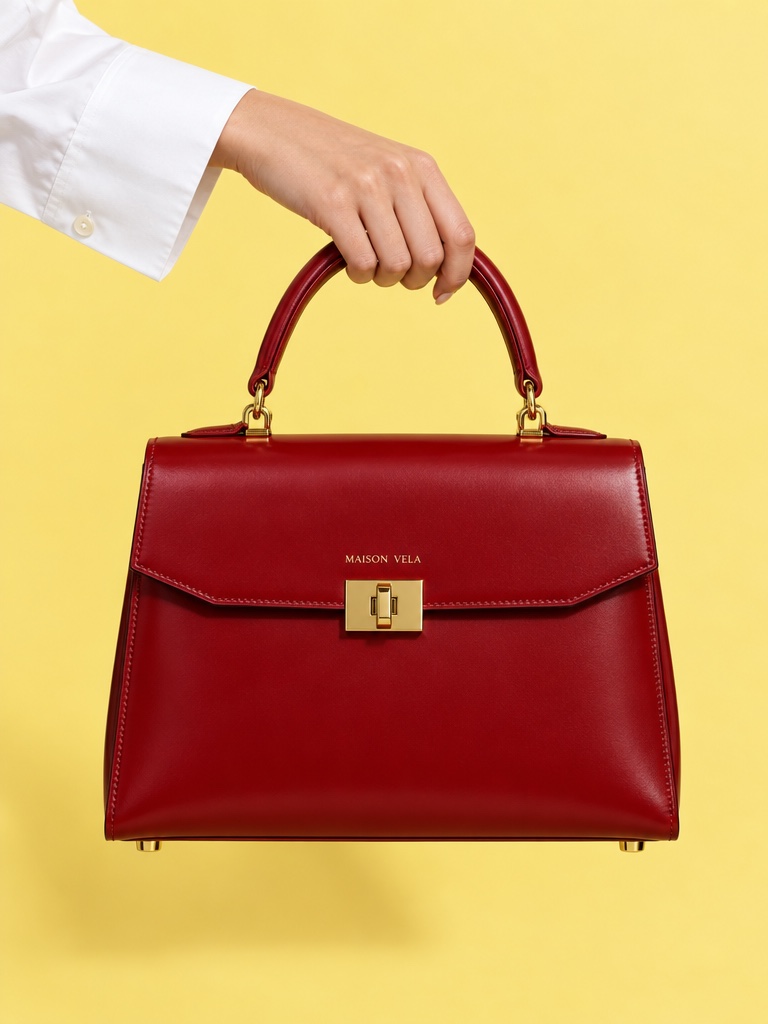
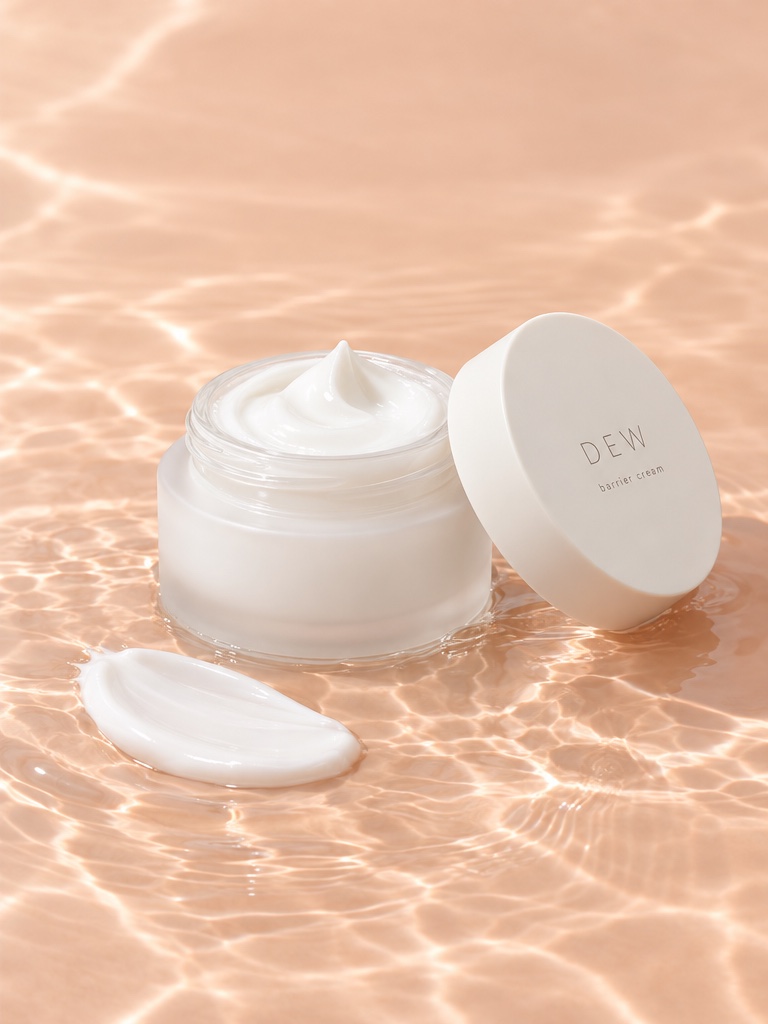
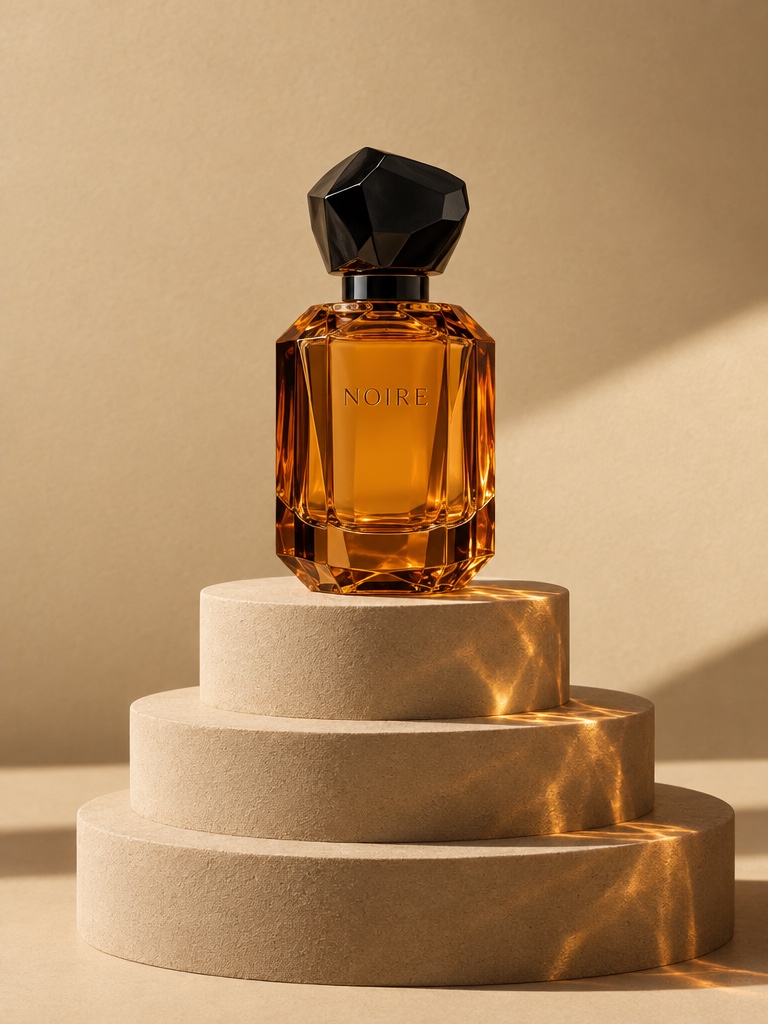
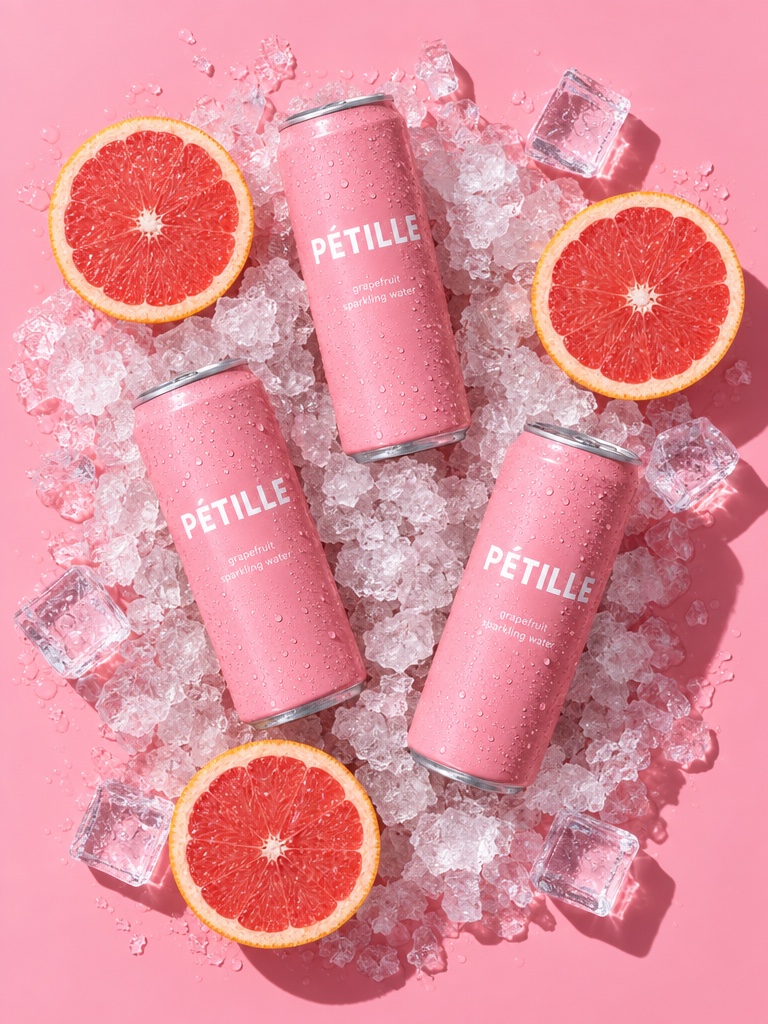
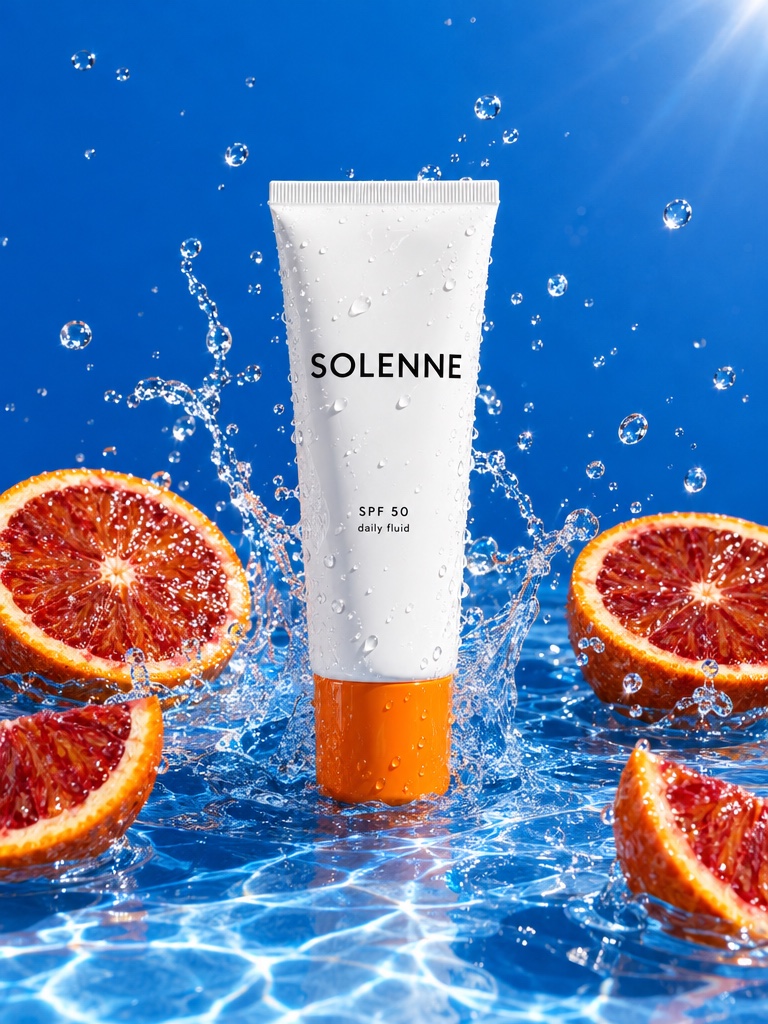
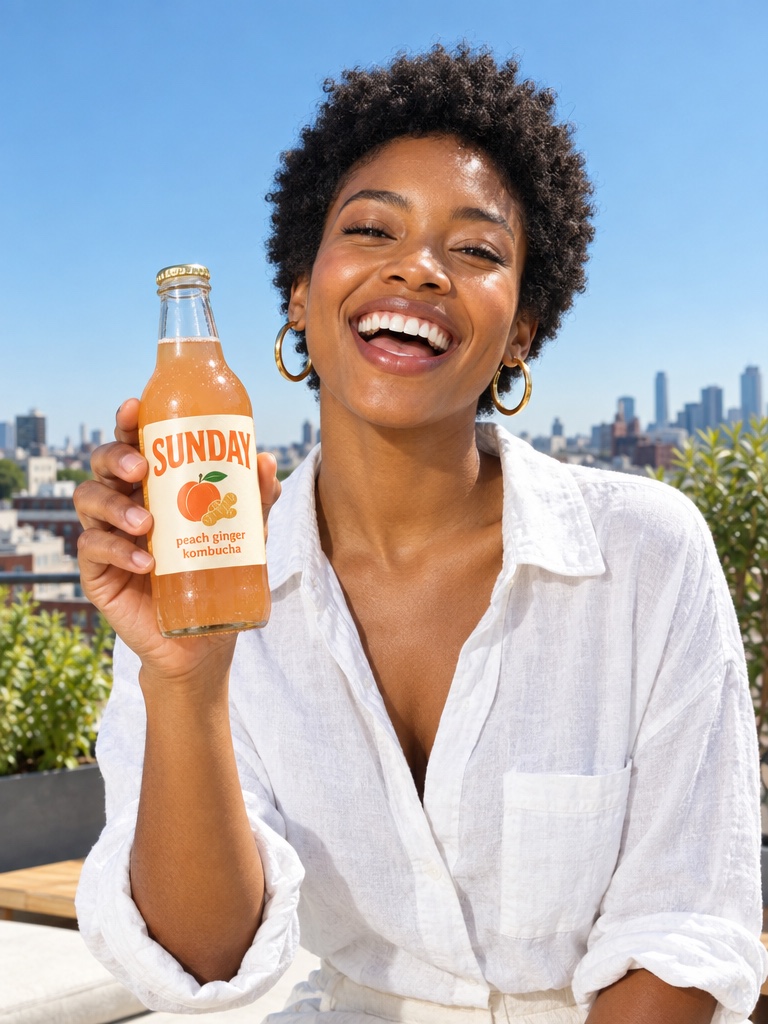
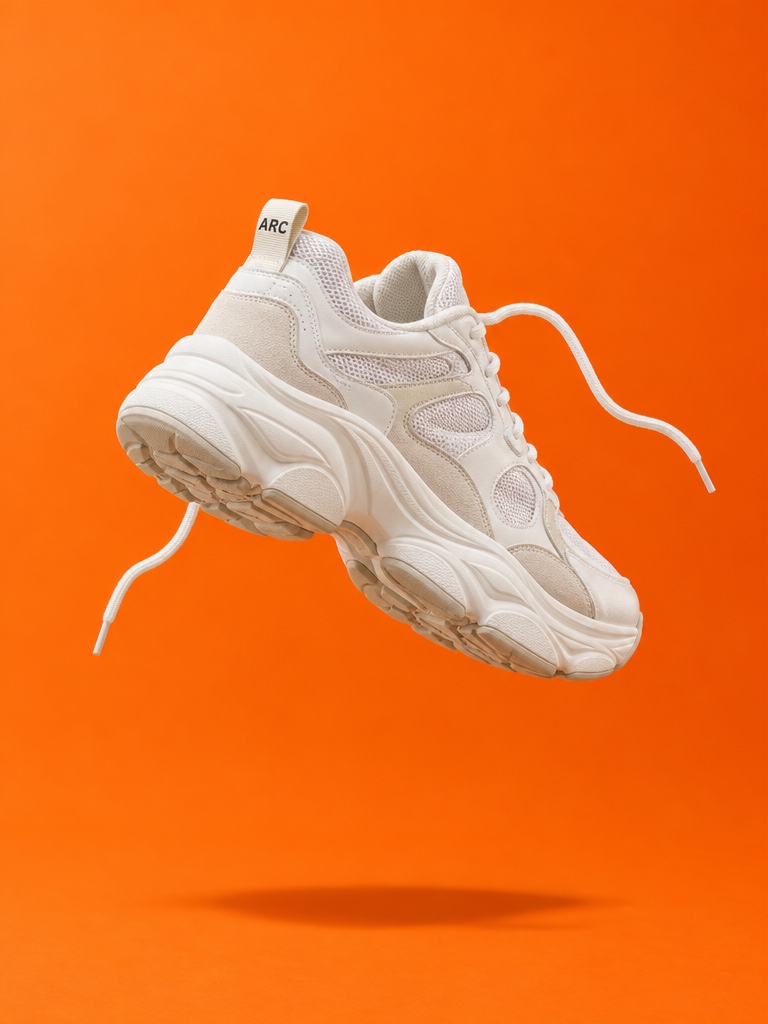
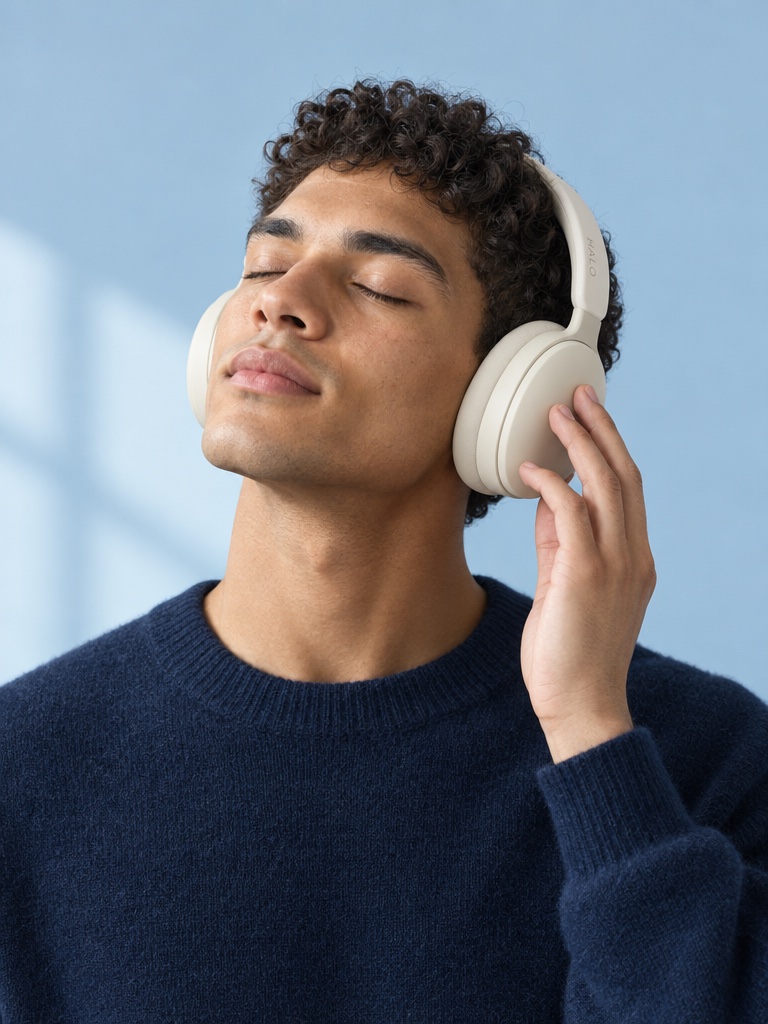
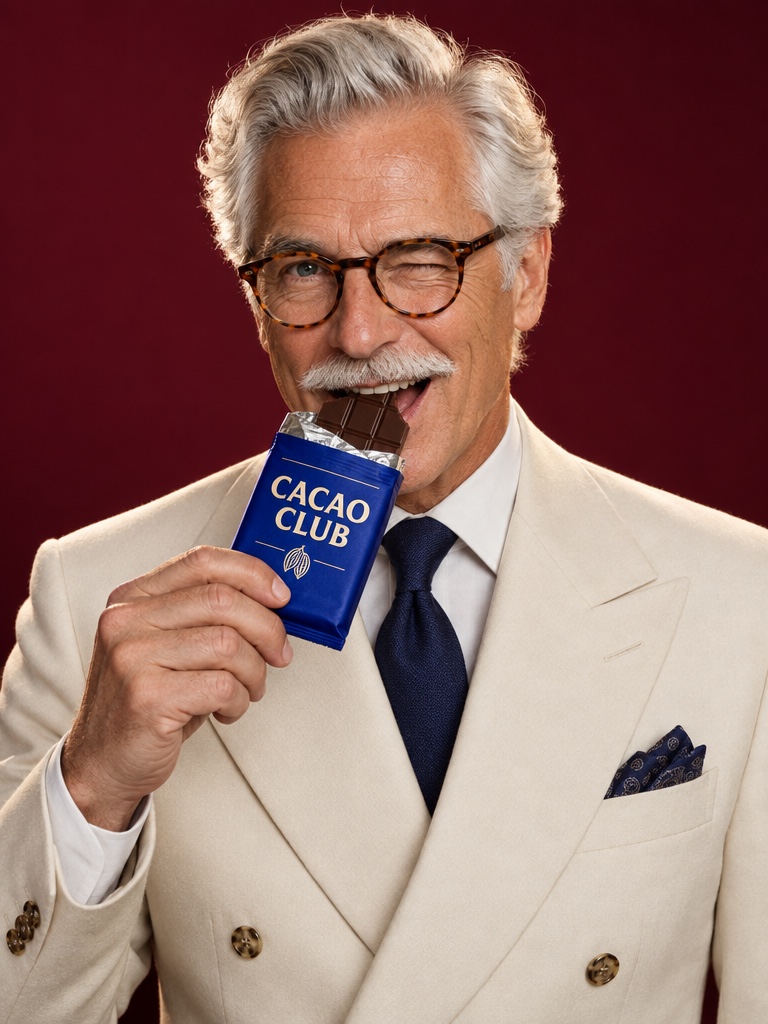
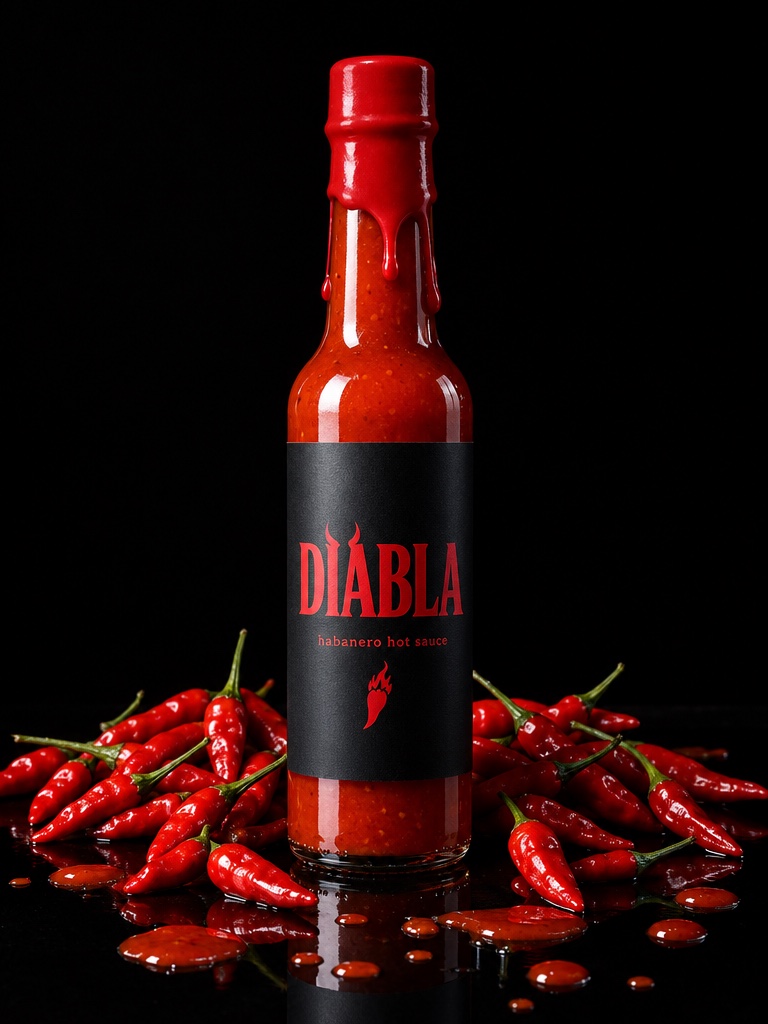
These are actual generations from the Avocado AI workspace. No stock photos, no mockups.


AI product photography is the practice of creating product images with AI, either by generating a scene from a text prompt or by editing a real photo of your product into new settings, light and layouts. For a brand the second approach matters most, because a customer expects the jar in the box to match the jar in the photo. This page covers how Avocado AI edits your own product photo into a full shot set, and what to check before you publish.
What is the best way to do AI product photography for a real product?
The most reliable way to do AI product photography for a real product is to start from a photo of that product and edit around it, rather than asking a model to invent it. In Avocado AI you upload the packshot to the image workbench and change the scene with GPT Image 2.5 edit or Nano Banana 2 Edit.
Prompt-only generation still has a place. It is fine for mood boards, backgrounds and concept shots, and the image workbench offers GPT Image 2.5, Nano Banana 2, Seedream 5.0 Pro, Recraft v4.1, Krea v2, Ideogram v3, Flux 2 and others for that. But an invented bottle of vitamin C serum will not match your real dropper, cap and label. Editing keeps your product as the anchor of every image.
How do I edit my product photo into new scenes?
To edit a product photo in Avocado AI, upload it to the image workbench, choose an edit model and describe the new scene, or start from a studio preset. Nano Banana 2 Edit accepts up to 14 reference images, so you can add a second angle of the product, a prop or a style reference next to the packshot.
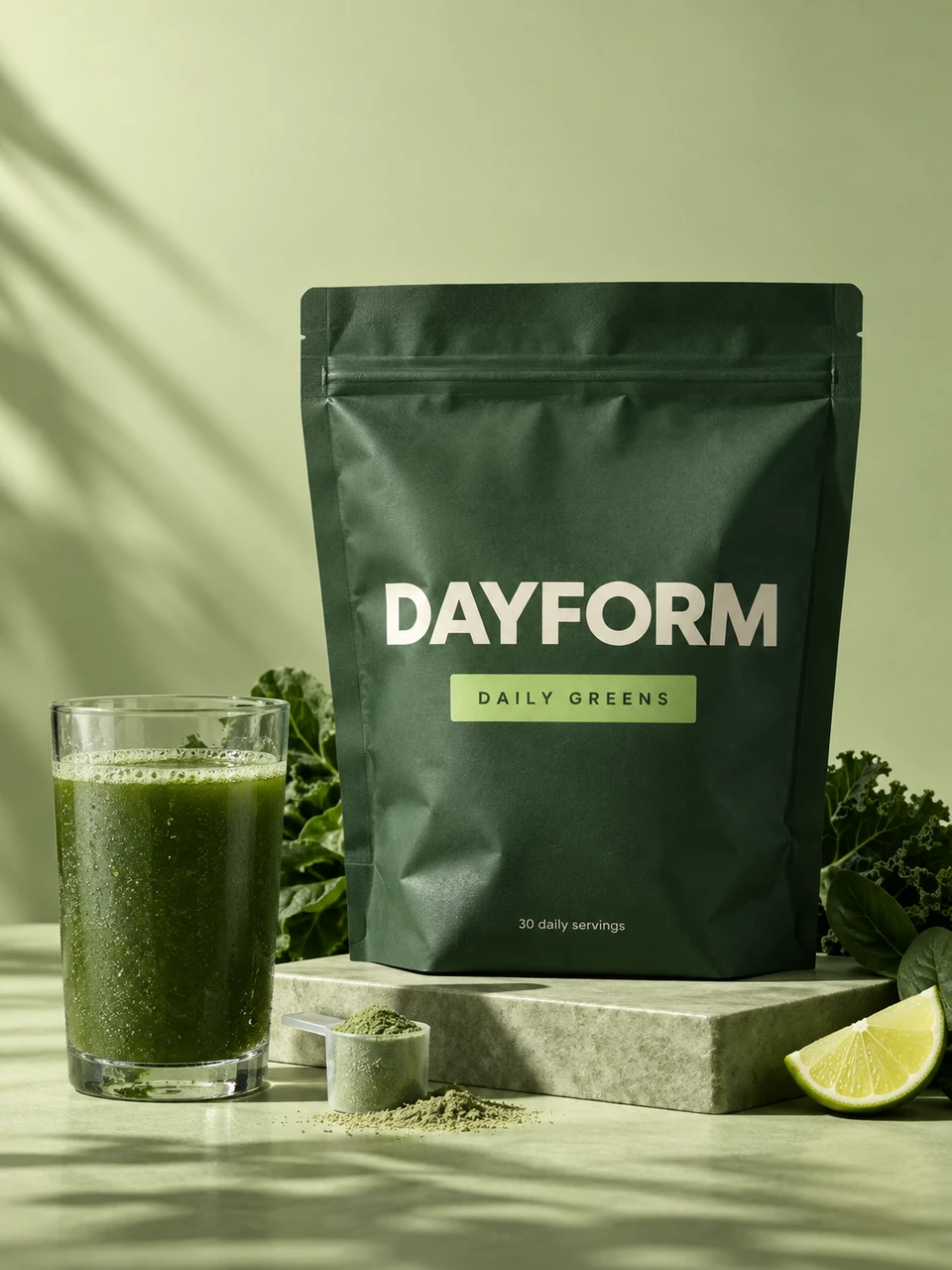
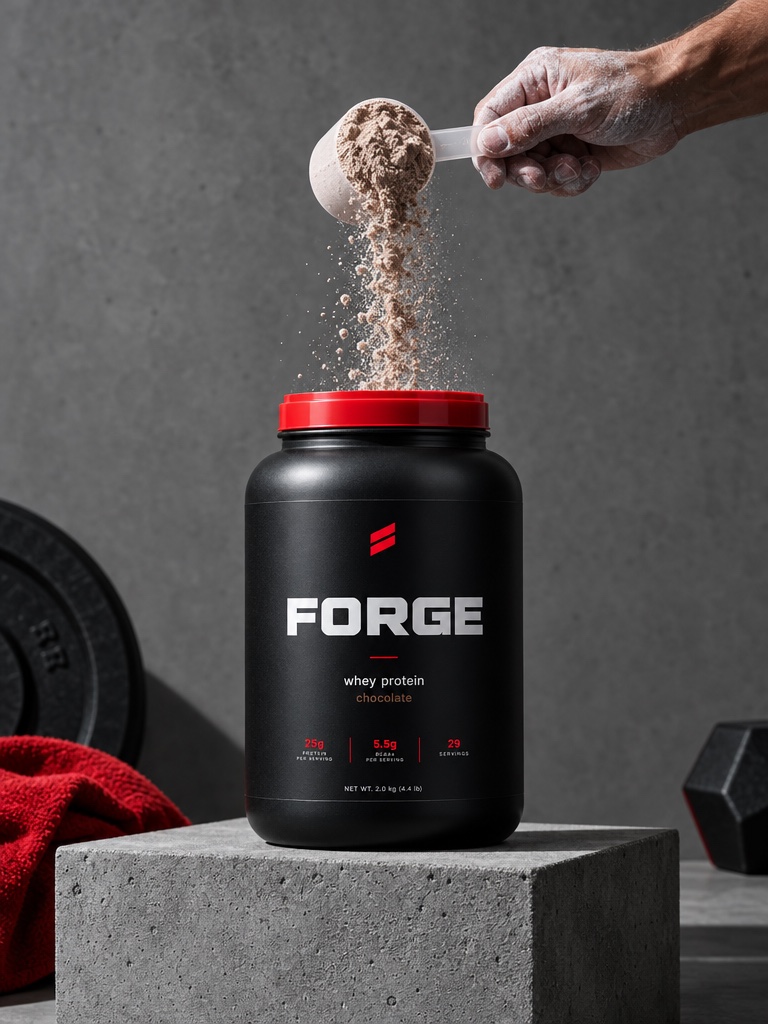
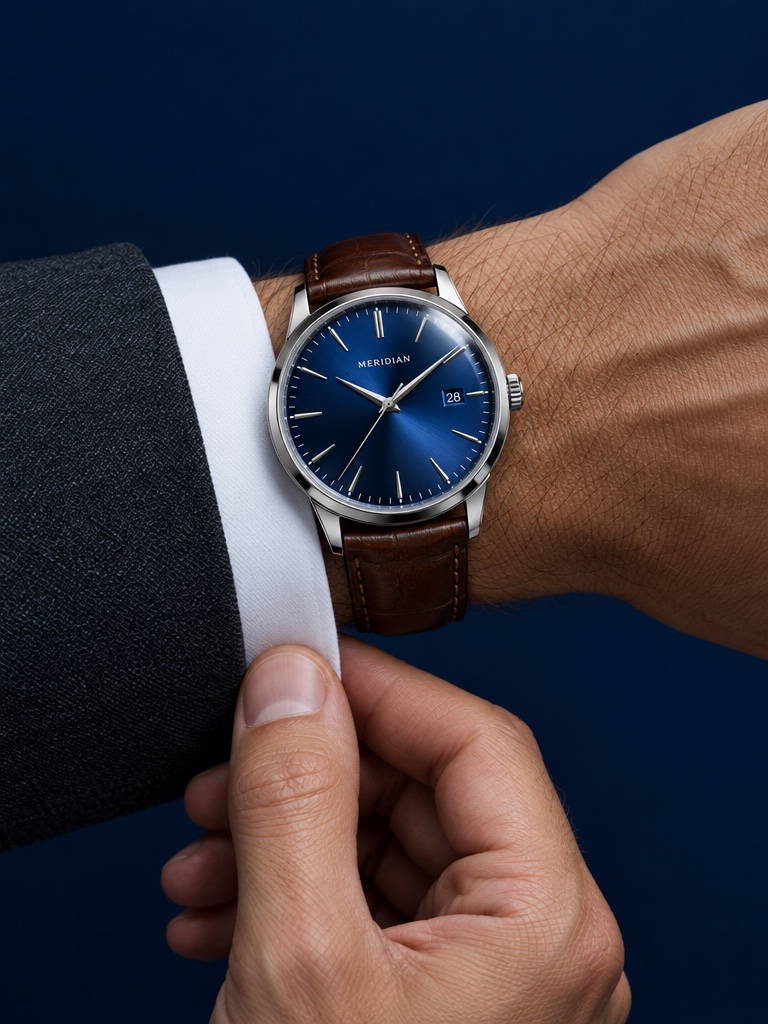
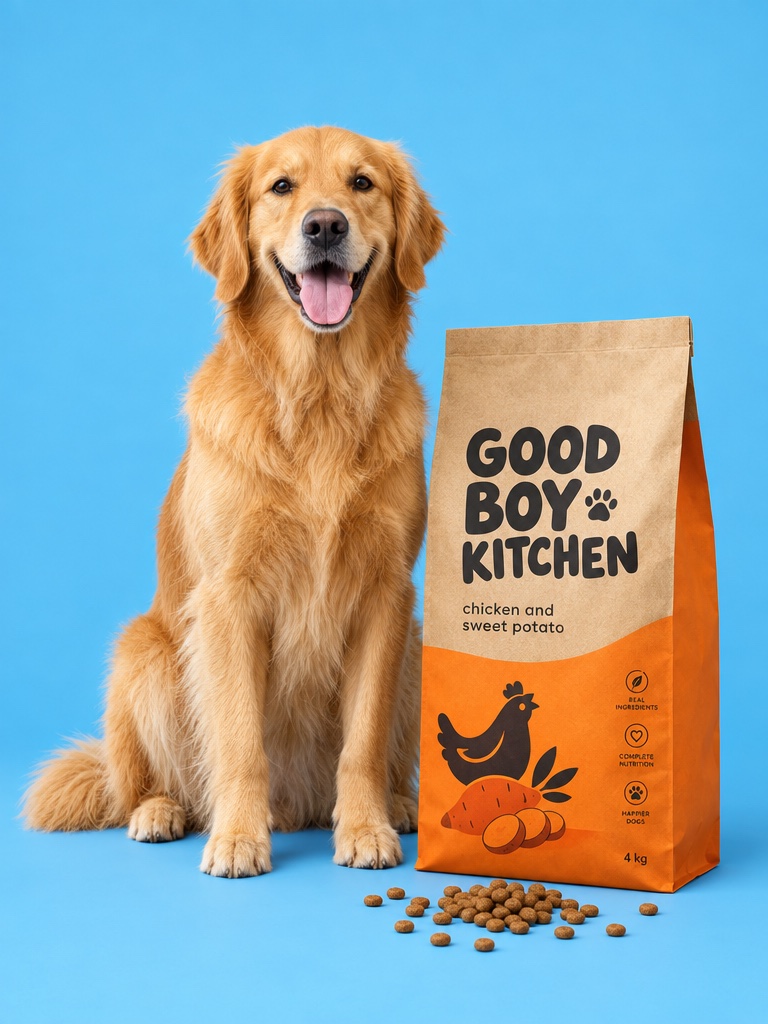
A few scenes that work well for health and beauty brands: a whey tub on a gym bench with morning light, an SPF moisturizer on a sunlit bathroom shelf, a jar of magnesium gummies on a bedside table at night, or an eau de parfum bottle on stone with soft shadows. Each run returns up to 4 variations, so you can pick the best composition and discard the rest. When a shot is right, upscale it for print, a product page or a large banner.
A clean source photo makes a big difference. Shoot the product front-on, in focus, with even light and the label readable. The edit models work from what they can see, and a blurry label in the source rarely becomes a sharp label in the result.
Will AI keep my product label accurate?
AI product photography keeps your product close to the original when you edit a real photo, but no model guarantees a pixel-perfect label every time. Small print, ingredient lists and fine logos are where errors appear. Check the label text on every image before you publish, and re-edit or regenerate any shot that drifts.
Some habits reduce the risk. Keep label-critical shots simple, with the product large in the frame and facing the camera. Add a second angle as a reference when the back of the pack will show. For images where exact wording matters, such as a supplement facts panel, use your original photo rather than a generated version.
How do I keep every product photo on brand?
Brand DNA keeps every Avocado AI product photo on brand. It stores your products, reference images, visual direction, tone and rules in one place, so each new edit starts from the same palette, lighting style and do and do not list. Products can be remembered and reused, so you do not re-upload the packshot every time.
This matters most when several people make images. An agency running creative for a skin care brand can load the brand's references once, and every designer on the account works from the same visual direction instead of their own interpretation of it.
Can I make the same shot set for every SKU?
Yes. Flows lets you build a product photo shot set once and run it for every SKU. A Flow is a canvas of steps, for example a white background packshot, a lifestyle scene and a close-up, and you run all the steps in one click with a different product photo each time.
A protein brand with six flavours can build one Flow and run it six times, getting the same three shots for each tub in the same style. Flows is on every paid plan and supports real-time collaboration, comments and share links, so a client can review the shots on the canvas before anything is exported.
Can I turn my product photos into video and ads?
Yes. Any product photo you make in Avocado AI can go straight to the video workbench, where Seedance 2.5, Kling 3.0 or Veo 3.1 animate it into a short clip. The UGC studio can also put your real product in a creator's hand, and Super Agent can turn the images into scheduled social posts.
Super Agent is on the Growth and Pro plans. With the paid Connectors add-on it publishes or schedules to Instagram, Facebook, TikTok, LinkedIn, Threads and X, and it can set up Meta Ads, always after your approval and with ad drafts that start paused.
How much does AI product photography cost with Avocado AI?
Editing your own product photo starts on the Avocado AI Starter plan at EUR 39 a month for 300 credits, which also adds upscale and Seedance 2.5. Intro, at EUR 19.99 for 100 credits, covers prompt-based generation only. Growth costs EUR 99 for 800 credits and Pro EUR 249 for 2,000.
Yearly billing takes 20% off, credits roll over for up to one year, and top-ups are available anytime. As a guide from the pricing page, a Nano Banana 2 image at 2K costs 1 credit; GPT Image 2.5 costs more at higher quality settings. Every plan includes full commercial rights and no watermark.