What does the AI product video workflow look like step by step?
The 5 steps below are the workflow teams run inside Avocado AI, from the first product photo to the exported variant set.
- 01
Save the product in Brand DNA
Add your product photos, references and brand rules once, so every edit and every clip starts from the same product.
- 02
Edit the real product still
Attach the product photo in the image workbench and edit it into the scene you want with GPT Image 2.5 edit or Nano Banana 2 Edit. Keep the best variation and upscale it.
- 03
Animate it with image to video
Use the edited still as the first frame in the video workbench with Seedance 2.5, Kling 3.0, Veo 3.1 or MiniMax H3 MAX. Add an end frame when you want a controlled reveal.
- 04
Add voice and music
Generate a voiceover with Fish Audio S2 Pro or your cloned voice in Audio Studio, and add a music bed that fits the product.
- 05
Assemble the commercial and repeat per SKU
Put the clips on a timeline with Director mode in Flows, check the label in every frame, then run the Flow again with the next product photo.
Which Avocado AI tools does AI product video use?
6 tools cover the whole AI product video workflow. They share one credit pool and one gallery, so nothing is exported between steps.
| Tool | Role in this workflow |
|---|---|
| Brand DNA | Products, references, visual direction, tone and rules every tool reads |
| Image workbench | Prompt or edit your own product photo, up to 4 variations per run, upscale |
| Video workbench | Text to video, animate a still, start and end frames, reference and motion control |
| Audio Studio | Voiceovers, designed and cloned voices, music beds and sound effects |
| Flows | Chain steps on one canvas, run them in one click, cut a commercial in Director mode |
| Avocado MCP | The same tools from Claude, Codex, Cursor or your own agent |
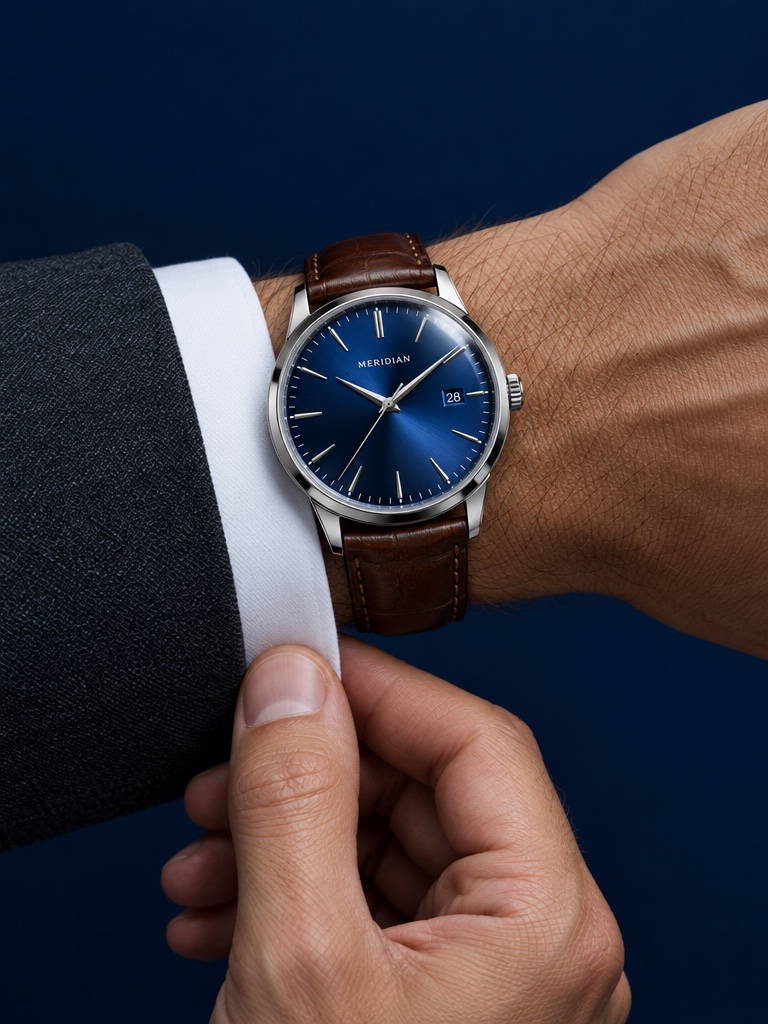
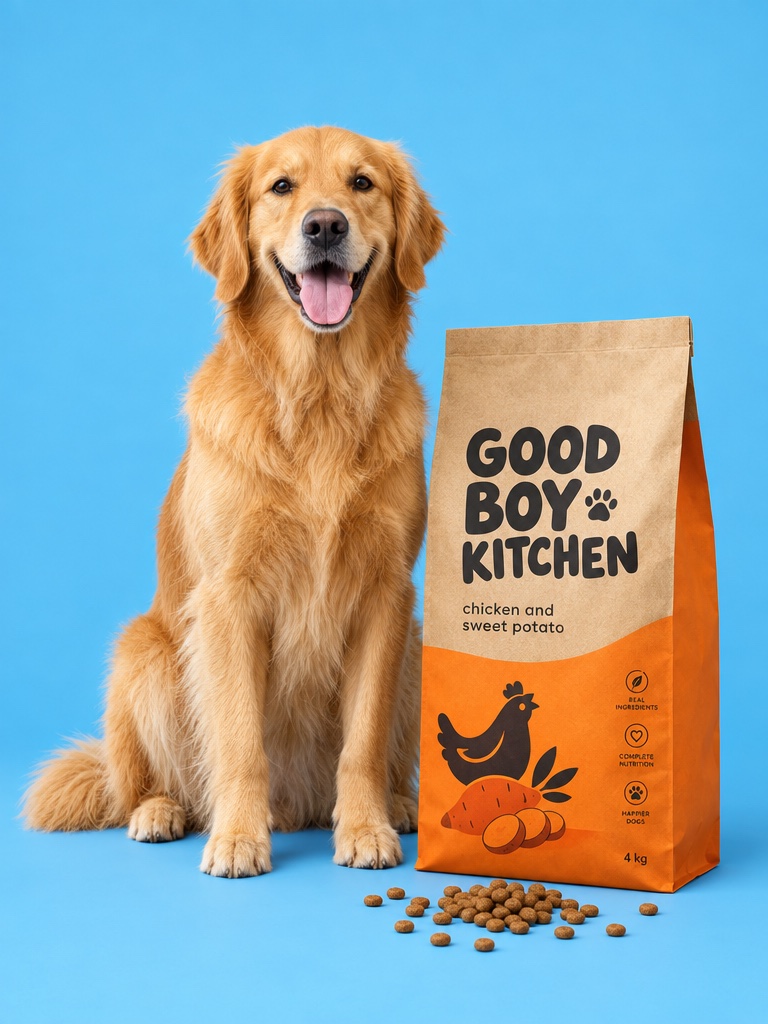
An AI product video generator is a tool that turns a product photo or a short brief into moving footage, such as a rotating pack shot, a lifestyle clip or a short ad. For a brand selling physical products, the hard part is not motion. It is keeping the bottle, the tub or the box looking like the one you actually ship. This page explains how Avocado AI handles that, and where the limits still are.
What is the best way to make an AI product video from a photo?
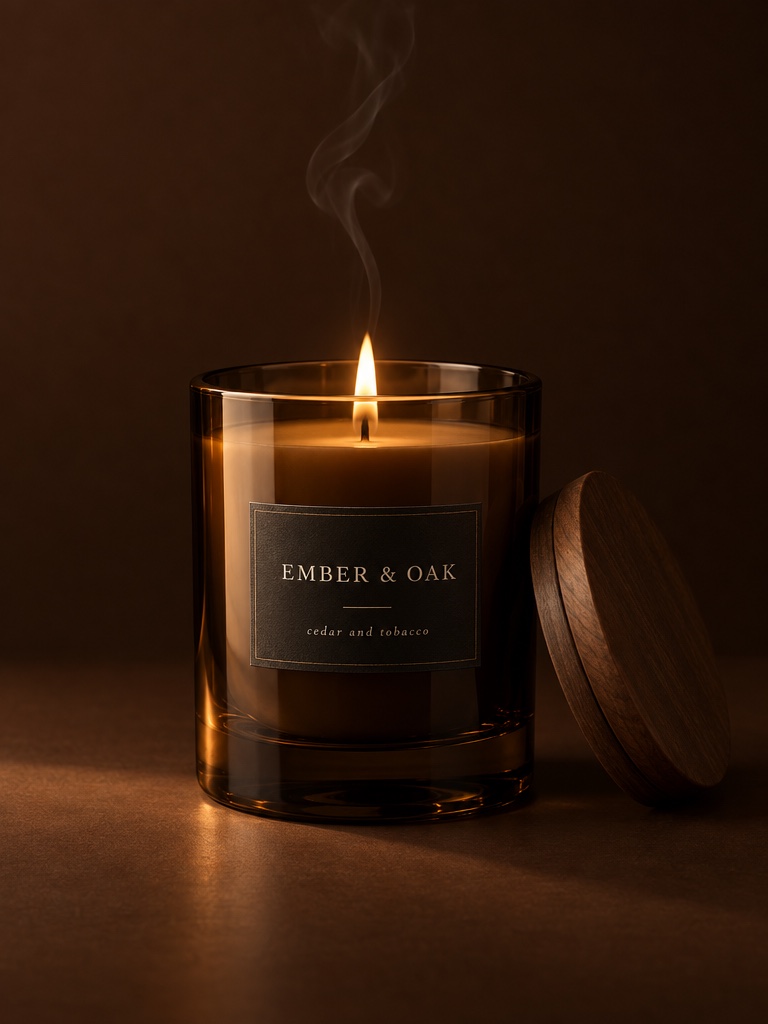
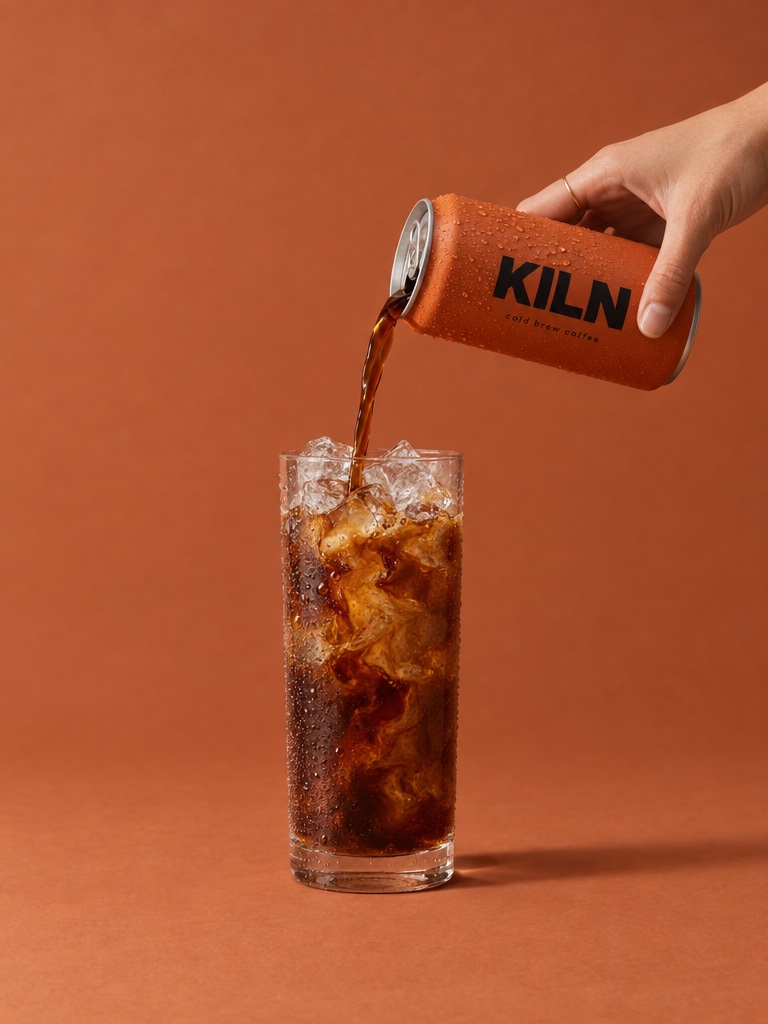
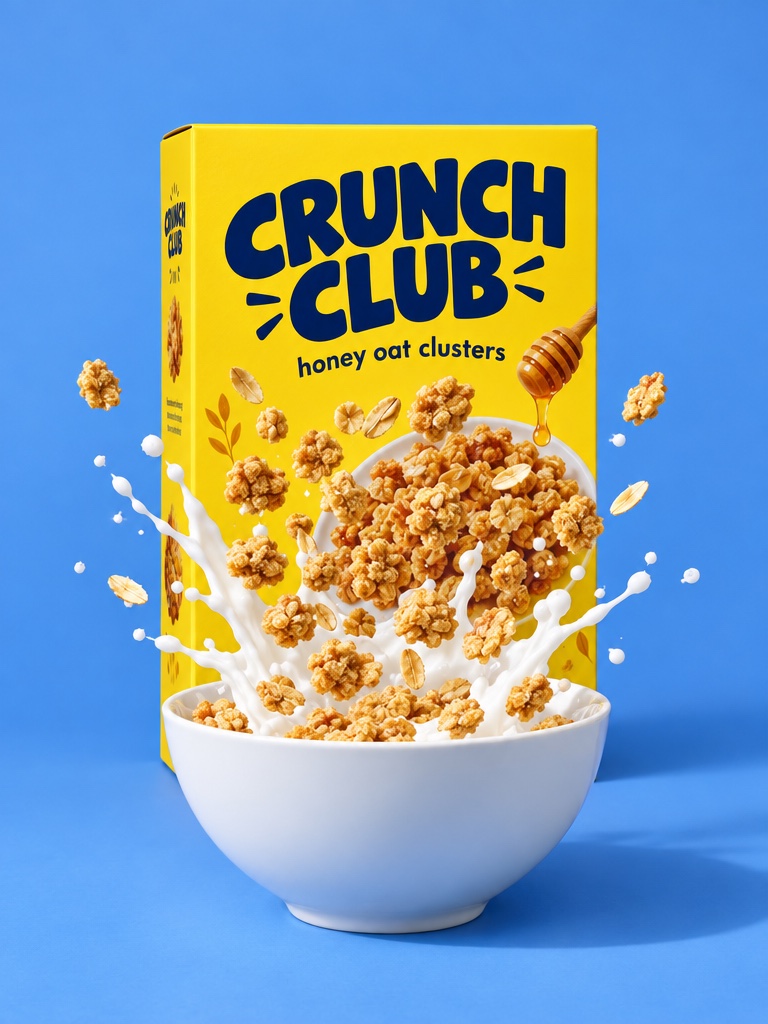
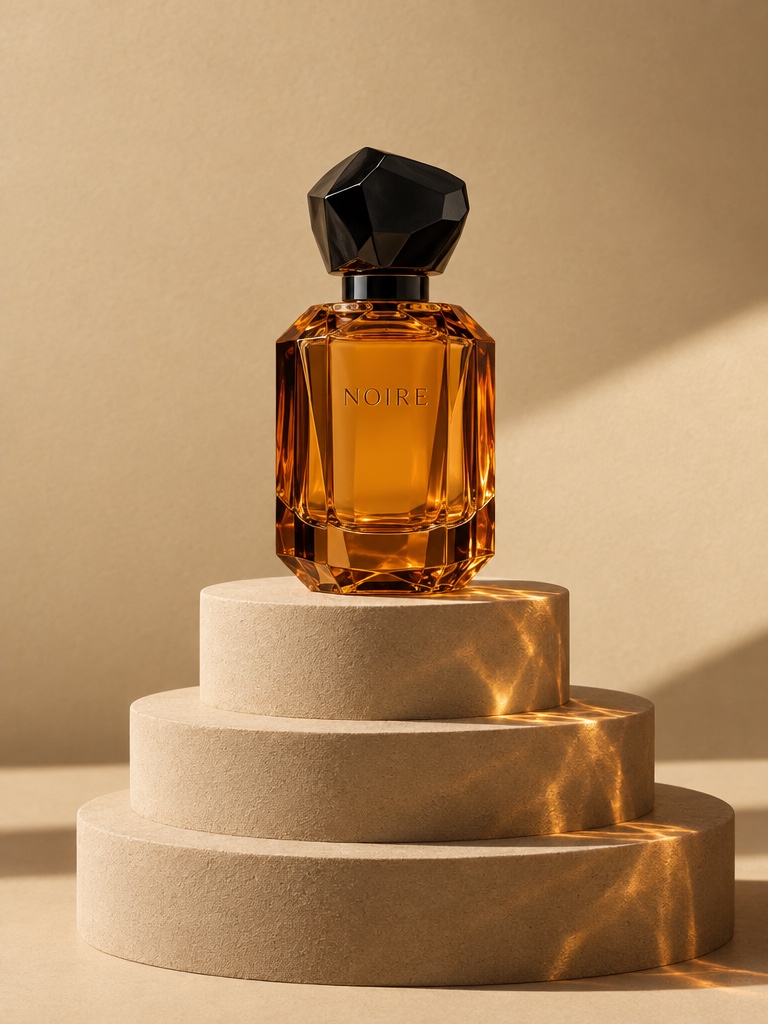
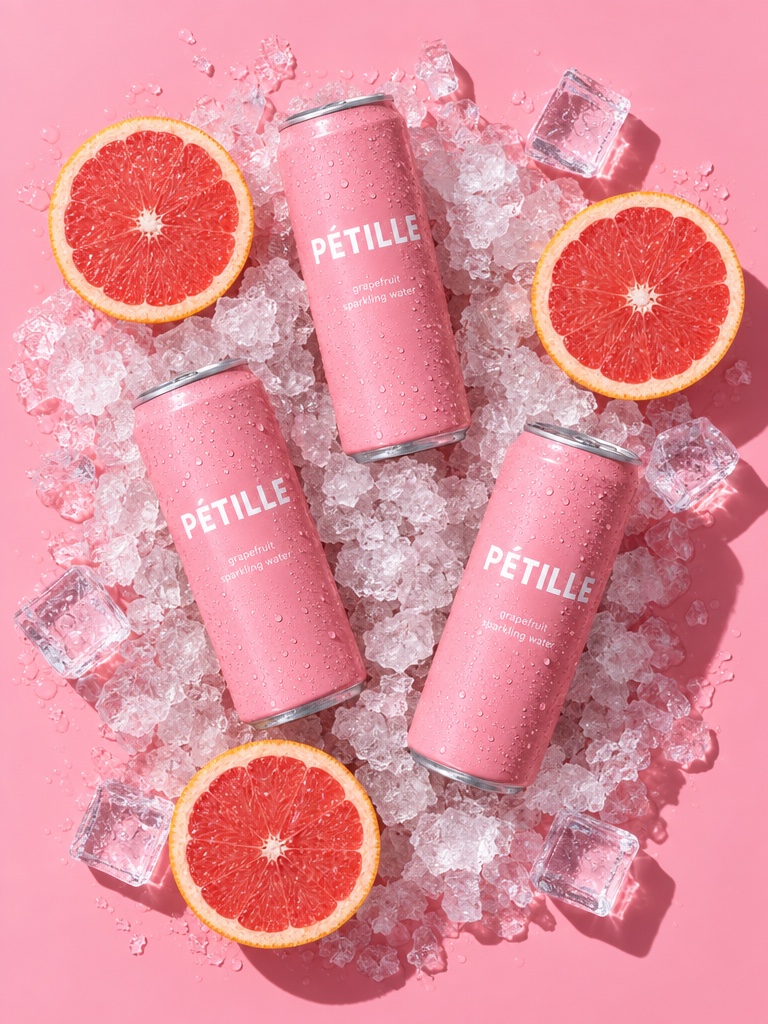
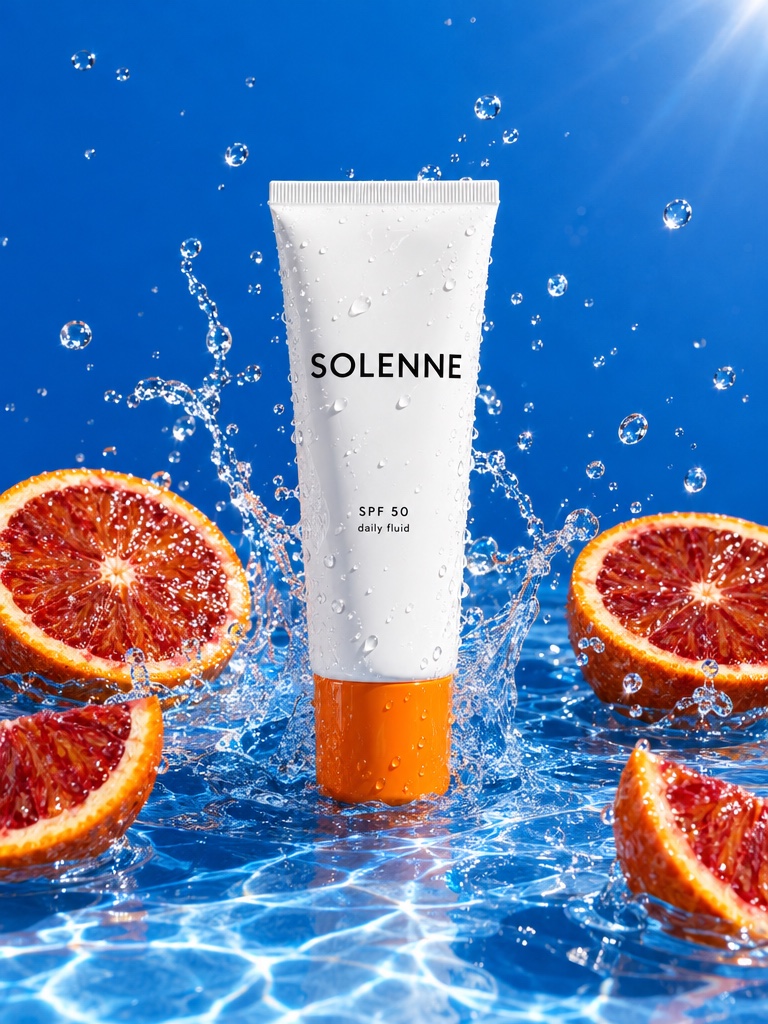
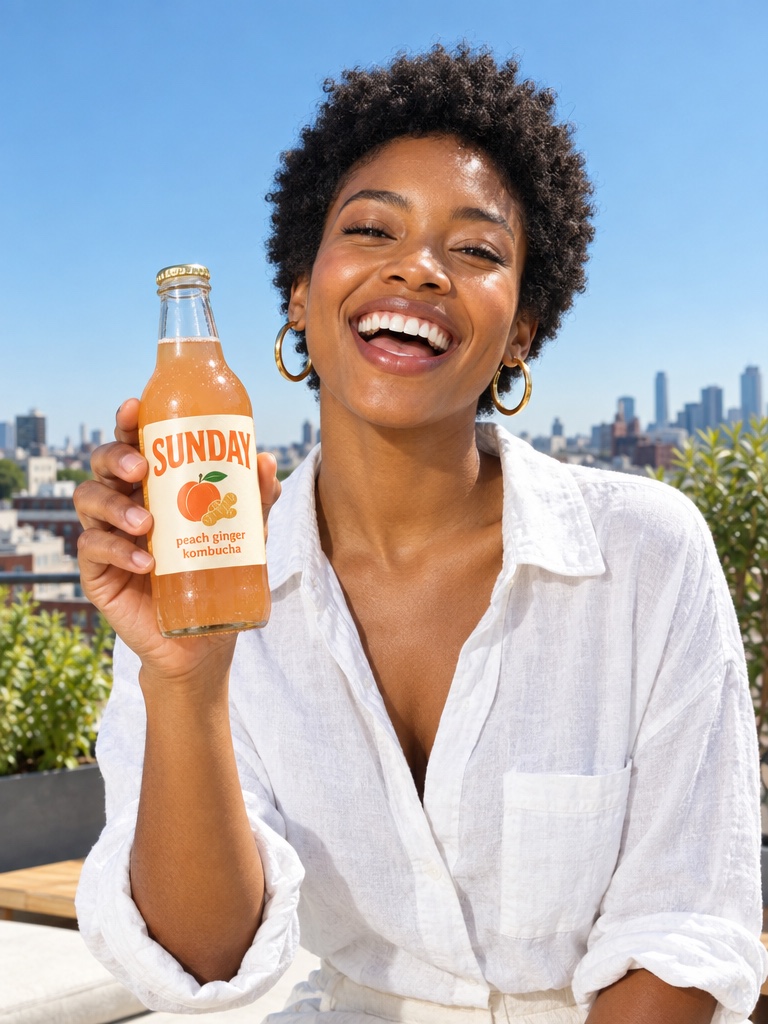
The most reliable way to make an AI product video is to start from your real product photo, edit that still into the scene you want, and only then animate it. Generating the product from text invites a model to invent the pack. Editing the photo keeps the shape, colour and label close to the real thing.
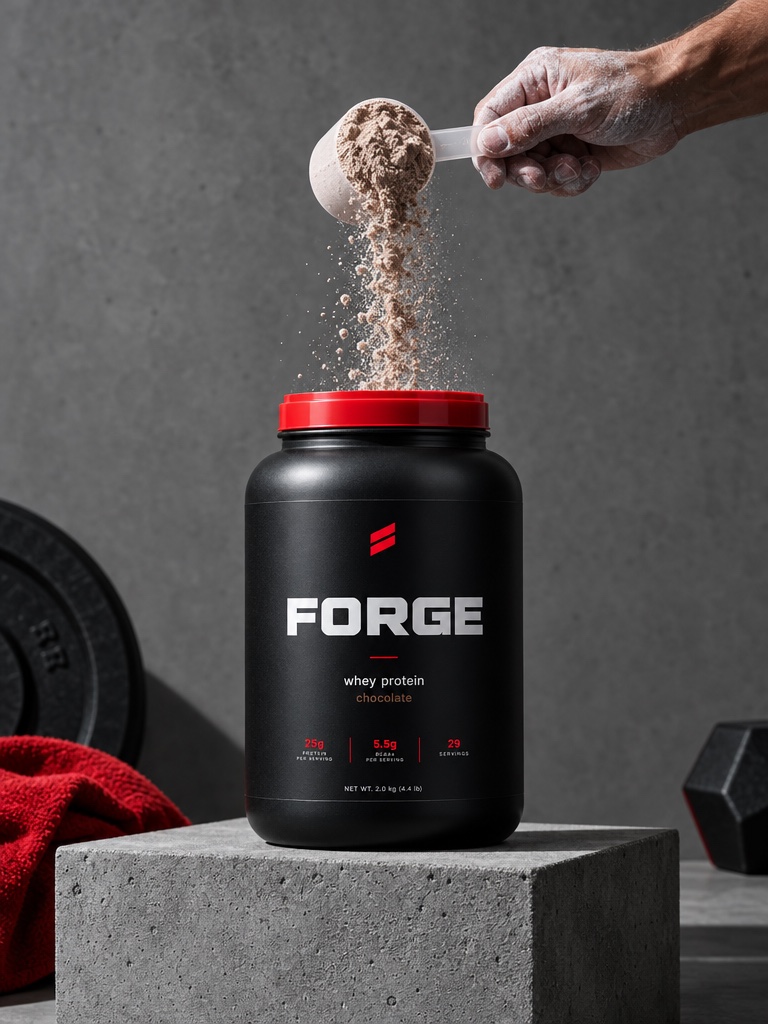
In Avocado AI the first step happens in the image workbench. Attach the product photo and describe the scene: a vitamin C serum on a marble shelf in morning light, or a whey tub on a gym bench. GPT Image 2.5 edit is the default, and Nano Banana 2 Edit accepts up to 14 reference images, so you can pass the front label, a side angle and a mood reference together. Run up to four variations, keep the best one and upscale it.
Which video models work best for product videos?
The best video model for a product video depends on the shot. In Avocado AI, Seedance 2.5 covers clips from 4 to 30 seconds at up to 1080p, Kling 3.0 goes up to 4K for hero shots, Veo 3.1 adds native audio, and MiniMax H3 MAX suits fast volume work.
All of them sit in the same video workbench, on one credit balance, and every result lands in one library. A practical habit is to animate the same edited still with two models and compare. A slow push-in on a fragrance bottle might look cleaner on one model, while a hand picking up a protein bar reads better on another. Gemini Omni Flash and Grok Imagine Video are also in the picker when you want a different look.
How do start and end frames help with product shots?
Start and end frames let an AI product video move between two images you have already approved. You set the first frame and the last frame, and the model fills the motion between them. That gives you control over where the product begins and ends, which matters for pack shots and reveals.
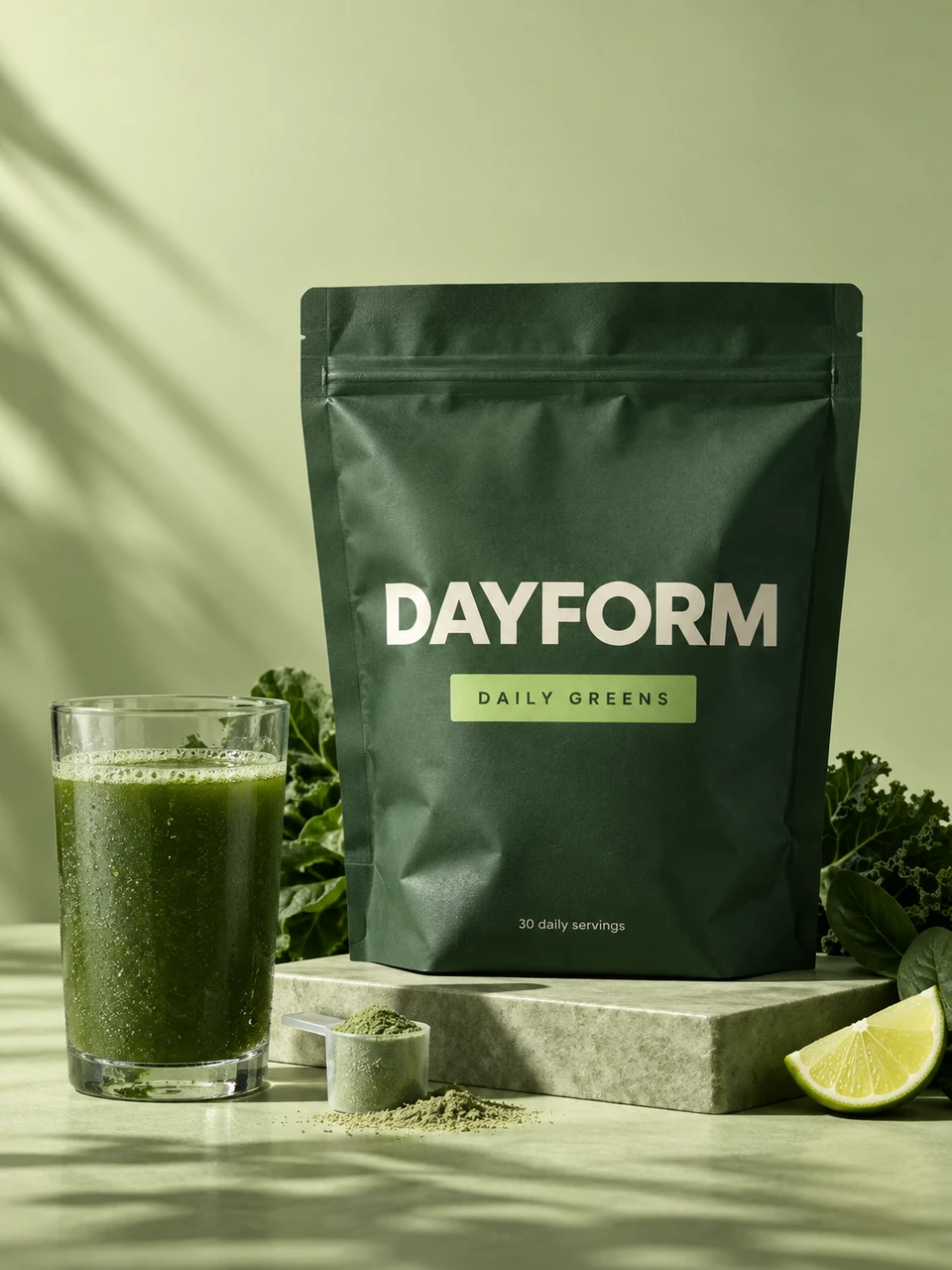
A common example is a greens powder launch. The start frame is the closed tub on a kitchen counter. The end frame is the same tub with the lid off and a scoop beside it, both edited from your real photo. The model animates the lid coming off. Because both ends are your own approved stills, the product has less room to drift than in a clip generated from text alone. The video workbench also offers reference and motion control modes when you need to copy a specific camera move.
How do I turn product clips into a full commercial?
Director mode in Flows turns product clips into a full commercial. It puts your generated clips on a timeline with music, so you can order the pack shot, the lifestyle clip and the closing frame into one cut. It assembles clips you made in Avocado AI; it is not an editor for importing long raw footage.
For the sound, Audio Studio sits in the same workspace. Write a short voiceover and generate it with Fish Audio S2 Pro, the default voice model, or with your cloned voice. Add a music bed and a sound effect or two. The commercial, the clips and the audio all stay in one library.
How do I make product videos for every SKU without starting over?
Flows lets you make a product video for every SKU without rebuilding the work. You chain the steps on a canvas once: edit the product still, animate it, add voice and music, assemble the cut. Then you swap in the next product photo and run every step again in one click.
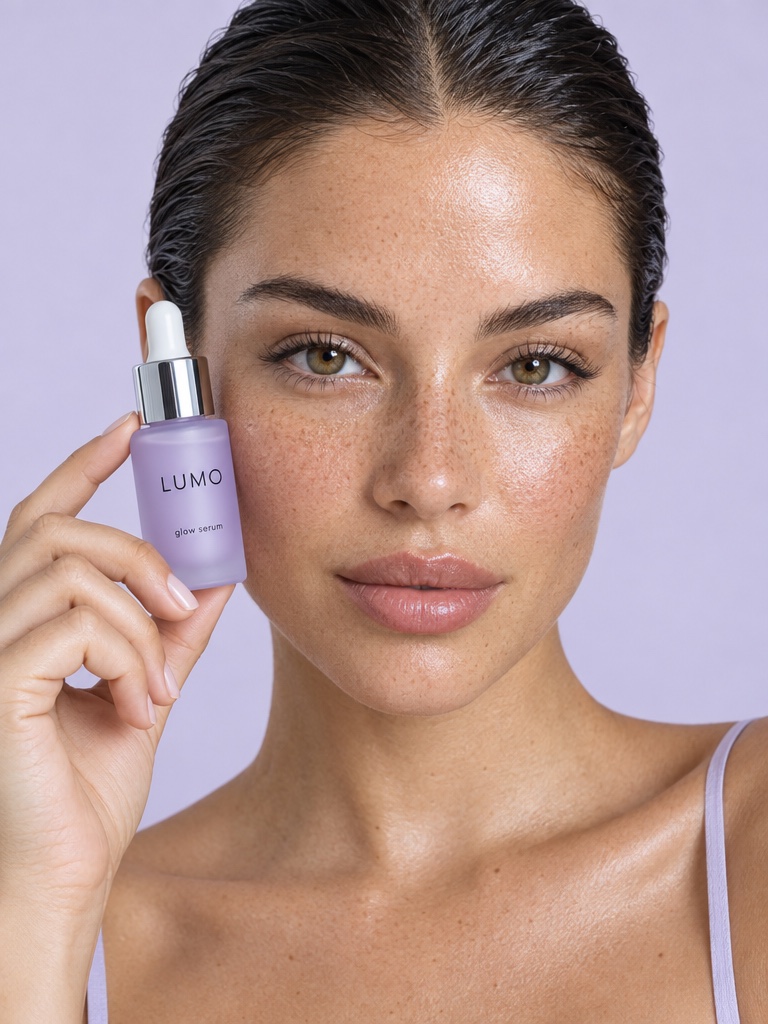
This is where the time saving usually shows up. A skin care brand with an SPF moisturizer, a serum and a cleanser builds the Flow on the first product and reruns it for the other two. Teammates can work on the same canvas in real time, leave comments and share a link for review. Flows is on every paid plan.
Where do AI product videos still fall short?
AI product videos still struggle with fine detail in motion. Small label text, ingredient lists and thin logos can blur or change shape as the camera moves, even when the first frame was perfect. Always check every frame of the final clip before you publish it, especially for regulated claims.
Shorter clips, slower camera moves and shots where the label faces the camera for less time tend to hold up better. If one clip keeps drifting, try the same still on another model, or cut away to a close-up still for the label moment. Hands handling small products can also look unnatural, so review those shots closely.
How much does an AI product video cost in Avocado AI?
An AI product video in Avocado AI is paid for in credits from one balance shared with images, UGC and audio. As listed on the pricing page, a 4-second Seedance 2.5 clip at 480p costs 8 credits, and longer or higher resolution clips cost more. Plans start at EUR 19.99 per month.
Editing your own product photo, upscaling and Seedance 2.5 start on Starter at EUR 39 per month for 300 credits. Growth is EUR 99 for 800 credits and Pro is EUR 249 for 2,000. Credits roll over for up to a year, and every plan includes full commercial rights with no watermark.